> ## Documentation Index
> Fetch the complete documentation index at: https://partner-help.letsdothis.com/llms.txt
> Use this file to discover all available pages before exploring further.
# Payment Plans
> Let participants spread the cost of an event across monthly installments instead of paying in full at checkout.
Payment Plans let participants split the cost of an event into interest-free **monthly installments** — fixed payments spread evenly across time — rather than paying the full amount at checkout. You turn the feature on for an event, participants choose it at checkout, and each installment is charged automatically to the same card once a month until the plan is complete.
## When to use Payment Plans
Payment Plans work best when ticket price is a genuine barrier to entry. We recommend enabling them for events where tickets cost **£100 / \$100 or more** — at that price point, spreading the cost meaningfully increases the likelihood of conversion. Common examples include multi-day events, overseas destination races, and premium endurance experiences.
Registration timing matters too. The more months between registration opening and the event, the more installments participants can take — and the more attractive the option becomes. Events with a short selling window (less than two months before the Last possible payment date) will see limited uptake, as the feature stops appearing in checkout once fewer than two installments can fit.
There are some limitations to be aware of — these are covered in detail further down this page. If you are unsure whether Payment Plans are a good fit for your event, contact your account manager.
**Getting the most from Payment Plans:**
* Set the **Last possible payment date** a few weeks before the event itself, so every plan completes before participants arrive.
* Use the **Payment Plans report** (Data & Insights → Reports) to monitor paid vs. total installments across all participants and reconcile against fulfillment lists.
* Commission is spread evenly across installments, so splitting a payment does not change what you net overall.
## How installments are calculated
When a participant chooses a plan, the number of installments they receive is whichever is smaller:
* The **maximum number of monthly payments** you set (between 2 and 30), or
* The number of **whole months remaining** between their purchase date and the event's Last possible payment date.
For example: if you set a maximum of 8 installments and a participant buys 3 months before the Last possible payment date, they get 3 installments — not 8. As the event approaches and time shrinks, the installment count drops automatically. An event that offered 8 monthly payments in January might only offer 3 by May, with no change from you.
Once there is less than 1 month until the Last possible payment date, Payment Plans stop appearing in checkout entirely — there is not enough time to fit two installments.
The first installment is taken at checkout. Subsequent installments are charged automatically on the same day each month. The first payment may be a penny or two higher than later ones to absorb rounding, and it also covers any items that must be paid in full upfront (see [Items charged in full on the first payment](#items-charged-in-full-on-the-first-payment) below).
## Setting up Payment Plans
Payment Plans are configured at the event level, with an optional per-ticket opt-out.
On the event setup screen, toggle **Payment Plans** on.
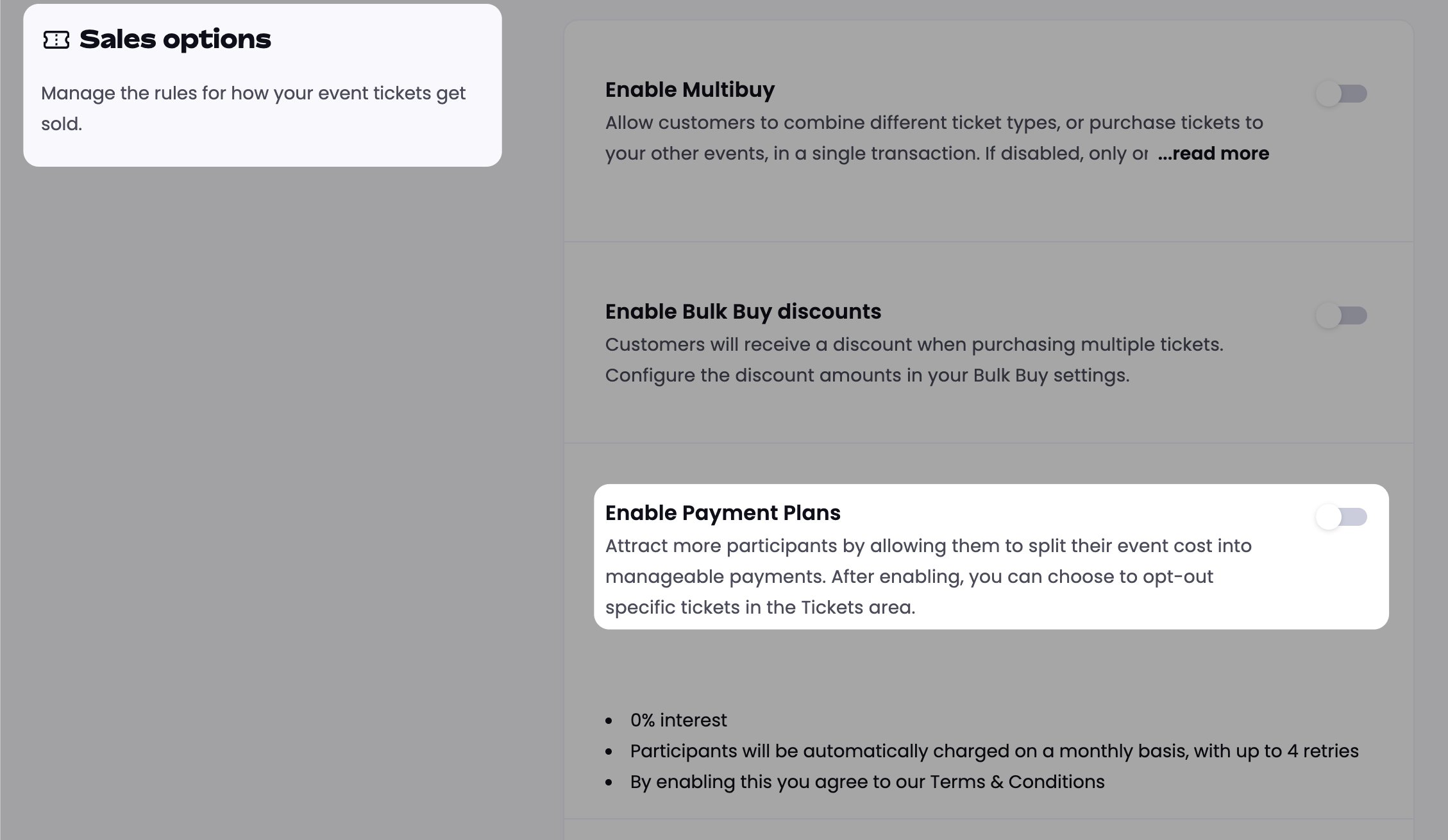 The feature is recommended for high-cost events. By enabling it, you agree to LDT's Payment Plans terms. The setup panel also recommends updating your own sales terms for participants.
Choose **Maximum number of monthly payments**. The allowed range is **2–30**, and the default is **4**.
This is a cap, not a fixed number. The actual installment count a participant sees is calculated live at checkout based on how much time remains before the Last possible payment date — it may be lower than your maximum.
Choose **Last possible payment date** — the latest date you are willing to accept the final installment.
As this date approaches, the number of available monthly payments reduces automatically to fit the remaining time. Once fewer than two installments can fit, the option disappears from checkout.
Set the Last possible payment date a couple of weeks before the event itself, so every plan finishes collecting before participants arrive.
On the **Tickets** tab, edit any ticket and turn its **Enable Payment Plans** toggle off. That ticket will only show "Pay in full" in checkout, even though the event allows plans on other tickets.
All tickets are opted in by default once you enable Payment Plans at the event level — opting out is per-ticket.
## Updating your Terms & Conditions
When you enable Payment Plans, you should update your event's Terms & Conditions to reflect how installment payments work. Clear T\&Cs protect both you and your participants by setting expectations upfront around payment schedules, participant obligations, and what happens if a plan is canceled or a payment fails.
The setup panel includes a reminder to do this. Contact your account manager or LDT support for suggested T\&C language you can add to your event.
## Who sees the Payment Plans option
A participant only sees the Payment Plans option when **all** of the following are true:
* You have turned Payment Plans on for the event.
* There is enough time for at least two monthly payments before the Last possible payment date.
* The specific ticket they are buying has not been opted out.
* The ticket is paid (free tickets never show the option).
If any condition is not met, checkout silently falls back to Pay in full and no monthly option appears.
## What participants see
### On the event page
When the event qualifies and the ticket is not opted out, a **"Payment plans available — Spread your payments with Let's Do This"** callout appears against the ticket listing.
### In checkout
After filling in their details and reaching the Review step, participants see two stacked options under **Select payment method**:
* **Pay over *N* installments** — where *N* is calculated live from your maximum payments setting and the time remaining before the Last possible payment date.
* **Pay in full**
The feature is recommended for high-cost events. By enabling it, you agree to LDT's Payment Plans terms. The setup panel also recommends updating your own sales terms for participants.
Choose **Maximum number of monthly payments**. The allowed range is **2–30**, and the default is **4**.
This is a cap, not a fixed number. The actual installment count a participant sees is calculated live at checkout based on how much time remains before the Last possible payment date — it may be lower than your maximum.
Choose **Last possible payment date** — the latest date you are willing to accept the final installment.
As this date approaches, the number of available monthly payments reduces automatically to fit the remaining time. Once fewer than two installments can fit, the option disappears from checkout.
Set the Last possible payment date a couple of weeks before the event itself, so every plan finishes collecting before participants arrive.
On the **Tickets** tab, edit any ticket and turn its **Enable Payment Plans** toggle off. That ticket will only show "Pay in full" in checkout, even though the event allows plans on other tickets.
All tickets are opted in by default once you enable Payment Plans at the event level — opting out is per-ticket.
## Updating your Terms & Conditions
When you enable Payment Plans, you should update your event's Terms & Conditions to reflect how installment payments work. Clear T\&Cs protect both you and your participants by setting expectations upfront around payment schedules, participant obligations, and what happens if a plan is canceled or a payment fails.
The setup panel includes a reminder to do this. Contact your account manager or LDT support for suggested T\&C language you can add to your event.
## Who sees the Payment Plans option
A participant only sees the Payment Plans option when **all** of the following are true:
* You have turned Payment Plans on for the event.
* There is enough time for at least two monthly payments before the Last possible payment date.
* The specific ticket they are buying has not been opted out.
* The ticket is paid (free tickets never show the option).
If any condition is not met, checkout silently falls back to Pay in full and no monthly option appears.
## What participants see
### On the event page
When the event qualifies and the ticket is not opted out, a **"Payment plans available — Spread your payments with Let's Do This"** callout appears against the ticket listing.
### In checkout
After filling in their details and reaching the Review step, participants see two stacked options under **Select payment method**:
* **Pay over *N* installments** — where *N* is calculated live from your maximum payments setting and the time remaining before the Last possible payment date.
* **Pay in full**
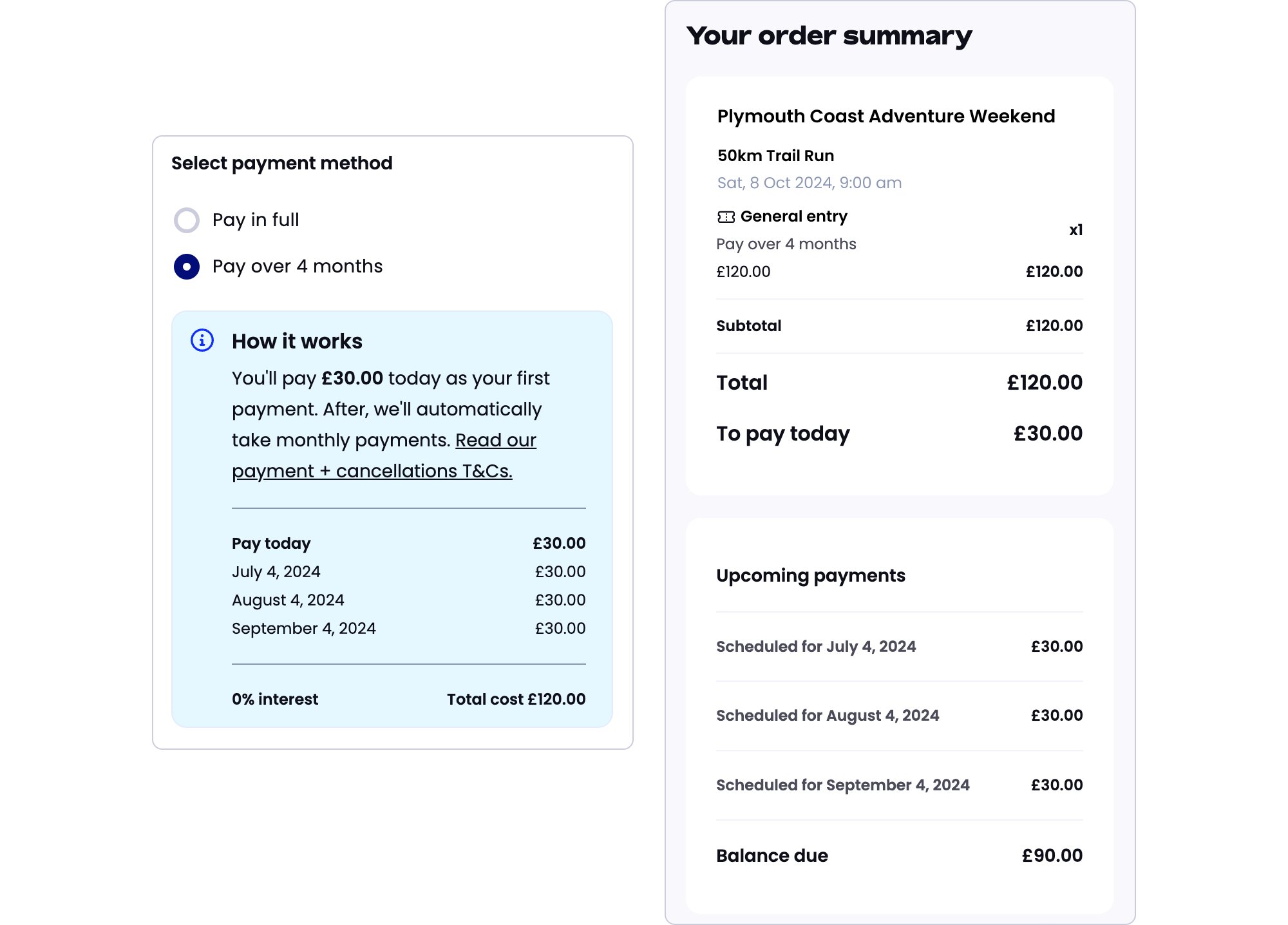 Selecting "Pay over *N* installments" reveals a **How it works** callout showing:
* The amount to pay today (the first installment).
* A dated list of upcoming installments. Dates are always shown in US format (e.g. "November 11, 2026"), regardless of the participant's locale.
* 0% interest confirmation and the total cost.
* A link to LDT's payment and cancellation terms.
The order summary on the right also updates to show the ticket as "Pay over *N* months", the full subtotal and total, and a "To pay today" line with the first installment amount.
### After checkout
The success page shows the full total, what was charged today, an Upcoming payments section listing each scheduled installment with its date and amount, and the balance remaining.
From their account, a participant can:
* See the current status of their plan: **Active**, **Canceled**, or **Completed**.
* Update the card on file used to charge future installments.
* Cancel the plan. The in-product warning is explicit: canceling the plan also cancels the registration, and a refund is not guaranteed. If they only want to update card details, they should use **Update payment details** instead.
## Managing plans
### Checking a single booking
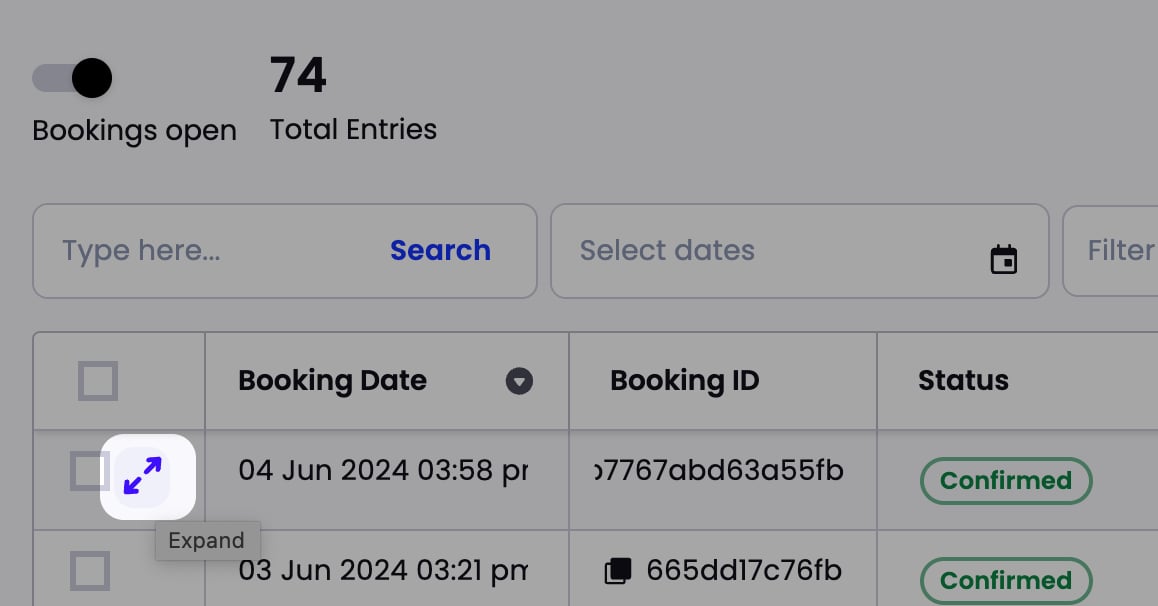
Open the event's bookings list and click **Expand** on the booking you want to inspect.
Selecting "Pay over *N* installments" reveals a **How it works** callout showing:
* The amount to pay today (the first installment).
* A dated list of upcoming installments. Dates are always shown in US format (e.g. "November 11, 2026"), regardless of the participant's locale.
* 0% interest confirmation and the total cost.
* A link to LDT's payment and cancellation terms.
The order summary on the right also updates to show the ticket as "Pay over *N* months", the full subtotal and total, and a "To pay today" line with the first installment amount.
### After checkout
The success page shows the full total, what was charged today, an Upcoming payments section listing each scheduled installment with its date and amount, and the balance remaining.
From their account, a participant can:
* See the current status of their plan: **Active**, **Canceled**, or **Completed**.
* Update the card on file used to charge future installments.
* Cancel the plan. The in-product warning is explicit: canceling the plan also cancels the registration, and a refund is not guaranteed. If they only want to update card details, they should use **Update payment details** instead.
## Managing plans
### Checking a single booking
Open the event's bookings list and click **Expand** on the booking you want to inspect.
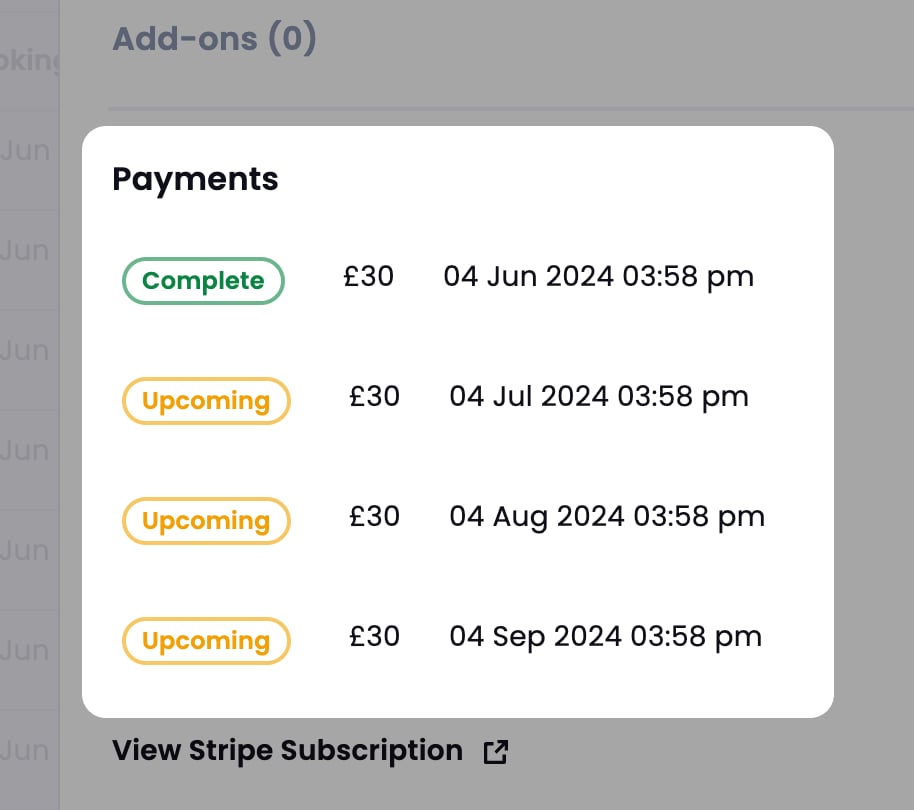
 The booking's **Payments** section lists every installment with its status — **Complete** for payments already taken and **Upcoming** for those still scheduled, each with its date and amount.
 A **View Stripe Subscription** link opens the underlying subscription if you need more detail.
In the bookings list, each booking on a plan has a **Payment Plan Status** column showing one of: **Active**, **Canceled**, **Completed**, or **Unknown**. If you see **Unknown**, contact LDT support with the booking ID.
### The Payment Plans report
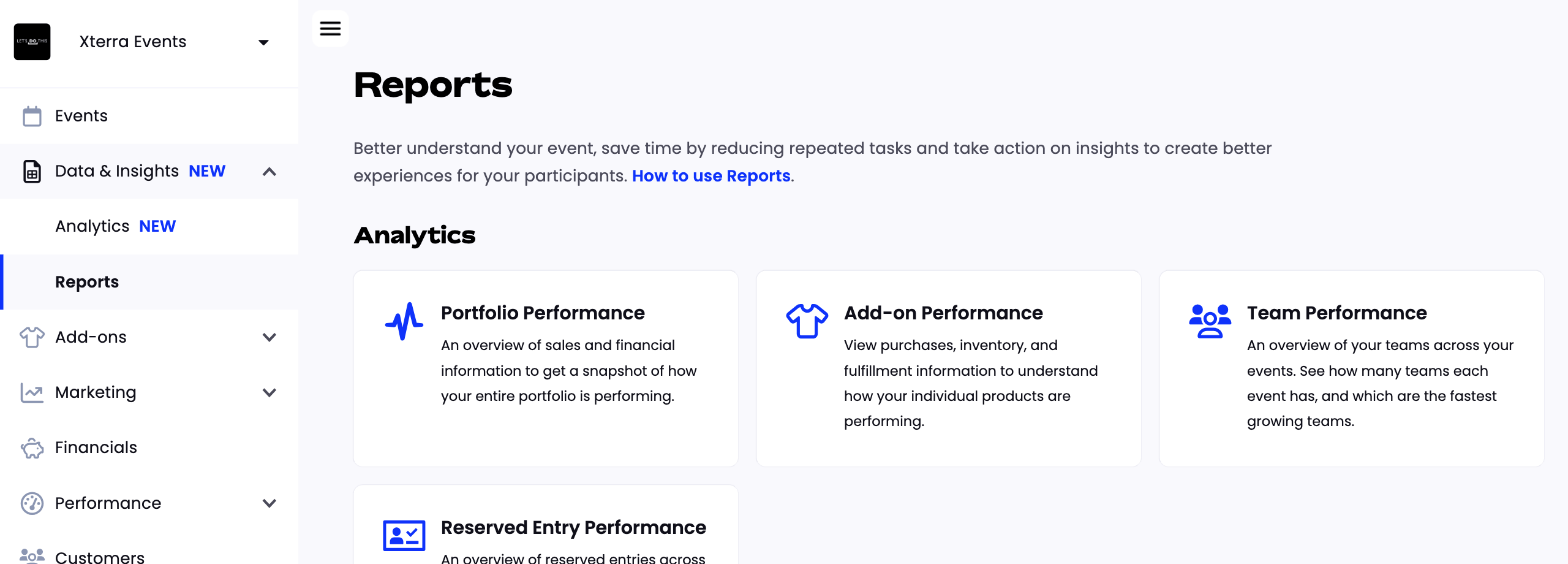
For a view across all participants on a plan, use the **Payment Plans** report under **Data & Insights → Reports**.
A **View Stripe Subscription** link opens the underlying subscription if you need more detail.
In the bookings list, each booking on a plan has a **Payment Plan Status** column showing one of: **Active**, **Canceled**, **Completed**, or **Unknown**. If you see **Unknown**, contact LDT support with the booking ID.
### The Payment Plans report
For a view across all participants on a plan, use the **Payment Plans** report under **Data & Insights → Reports**.
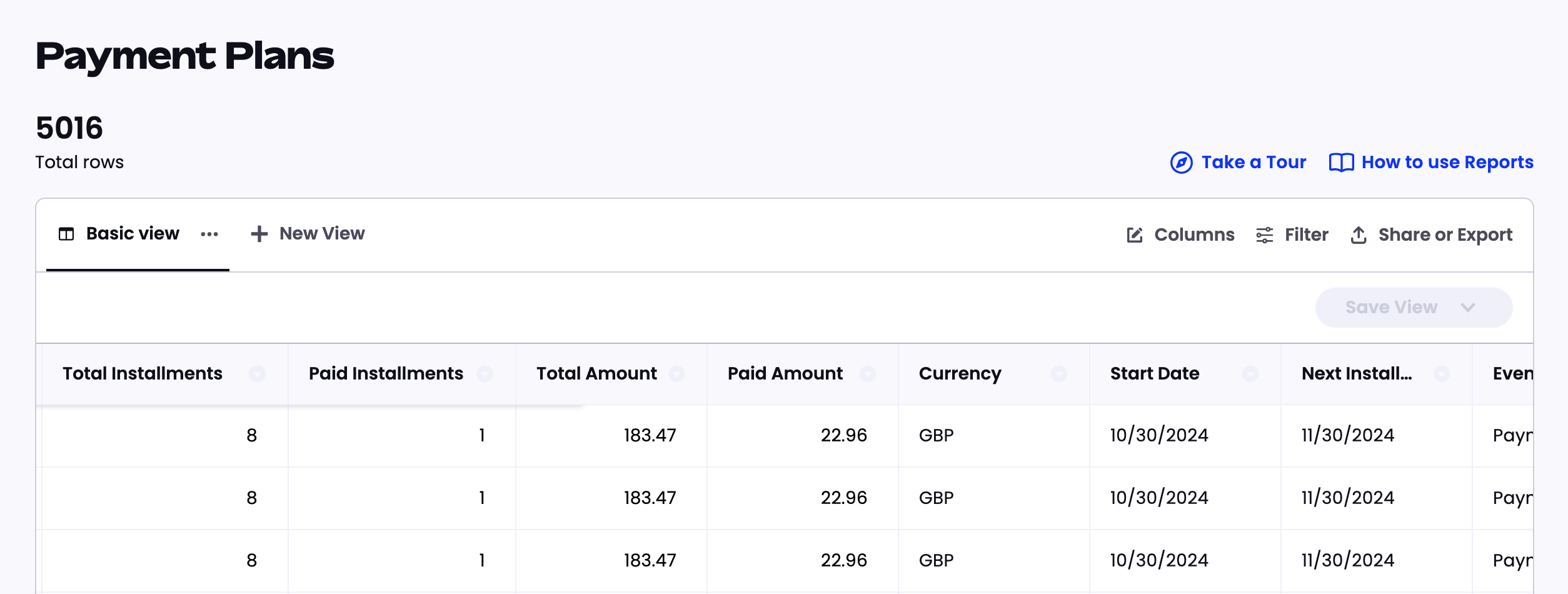 The report gives one row per plan, with columns for Total Installments, Paid Installments, Total Amount, Paid Amount, Currency, Start Date, Next Installment, and the event. You can filter, choose columns, and export — useful for reconciling who has paid what and cross-referencing against fulfillment lists.
## Items charged in full on the first payment
Even on a plan, some items are not spread across installments — their full cost is collected as part of today's first payment. Everything else (the ticket and most add-ons) is split evenly.
Items always charged in full upfront:
* **Refund Protect** (refundable booking) purchases.
* **Memberships** (e.g. a federation membership such as a British Triathlon license).
* Anything that pays a **third party** directly — charity donations, external registration or license providers, insurance, or third-party merchandise.
This is why the first payment is sometimes larger than a straight total ÷ number of months. It is expected behavior, not an error.
You cannot currently exclude add-ons from plans. When a plan is enabled, paid add-ons are included and split across installments along with the ticket.
## Refunds
The organizer-facing refund tool **cannot** process refunds on payment-plan bookings. This applies to both full and partial refunds.
To refund a participant on a payment plan, contact LDT support with the booking ID and the amount to be refunded. LDT will process it on your behalf. Only money already collected can be refunded — future installments have not been charged. Processing the refund also cancels the plan and the registration.
Refunding an add-on on a payment-plan booking does **not** re-price the remaining installments. The participant continues paying the original monthly amount. The subscription is only canceled on a full refund or when the final installment is taken. Removing an add-on from a booking without issuing a refund leaves both the total and the installment schedule unchanged.
## Transfers and deferrals
Transferring an entry with an active payment plan is blocked by the system. The transfer flow displays:
> Entries with active payment plans cannot be transferred.
Deferrals are not blocked in the same way, but an active plan should be resolved before deferring — the plan cannot carry over to a new entry.
Your options in both cases:
1. Have the booking refunded (via LDT support — see [Refunds](#refunds) above) and ask the participant to re-enter the new event, starting a fresh plan.
2. Note the booking and process the transfer or deferral once the plan is complete.
## Missed payments and cancellations
If a scheduled installment fails (expired card, insufficient funds, bank decline), LDT retries automatically — up to 4 retries. The participant is notified of each failed attempt and can update their card from the booking management page.
If every retry fails, the plan and the booking are canceled and **cannot be reinstated**. The participant must re-book. Common ways to handle this:
* Issue account credit for the amount already paid, so the participant only owes the remaining balance on re-booking. LDT can help apply credits.
* Reserve an entry and arrange payment separately.
* Process a manual re-entry and adjust accordingly.
Any refund of the amount already paid on a canceled payment-plan booking must go through LDT support — you cannot issue it directly.
## Plans cannot be edited or paid off early
Once a plan has started, neither you nor the participant can change its terms, and the participant cannot settle the remaining balance ahead of schedule. Installments are only taken automatically on their scheduled dates.
If a change is needed, the plan must be canceled, the participant refunded (via LDT support), and a new booking and plan started.
Some actions — such as changing race category — are only available once a plan is fully paid. Participants who want to make those changes earlier will need to wait until all installments are complete.
## Commission
Commission is applied evenly across installments. Each monthly payment carries its proportional share, so the total commission is the same as it would be on a Pay in full booking. Splitting the payment does not change what you net.
The report gives one row per plan, with columns for Total Installments, Paid Installments, Total Amount, Paid Amount, Currency, Start Date, Next Installment, and the event. You can filter, choose columns, and export — useful for reconciling who has paid what and cross-referencing against fulfillment lists.
## Items charged in full on the first payment
Even on a plan, some items are not spread across installments — their full cost is collected as part of today's first payment. Everything else (the ticket and most add-ons) is split evenly.
Items always charged in full upfront:
* **Refund Protect** (refundable booking) purchases.
* **Memberships** (e.g. a federation membership such as a British Triathlon license).
* Anything that pays a **third party** directly — charity donations, external registration or license providers, insurance, or third-party merchandise.
This is why the first payment is sometimes larger than a straight total ÷ number of months. It is expected behavior, not an error.
You cannot currently exclude add-ons from plans. When a plan is enabled, paid add-ons are included and split across installments along with the ticket.
## Refunds
The organizer-facing refund tool **cannot** process refunds on payment-plan bookings. This applies to both full and partial refunds.
To refund a participant on a payment plan, contact LDT support with the booking ID and the amount to be refunded. LDT will process it on your behalf. Only money already collected can be refunded — future installments have not been charged. Processing the refund also cancels the plan and the registration.
Refunding an add-on on a payment-plan booking does **not** re-price the remaining installments. The participant continues paying the original monthly amount. The subscription is only canceled on a full refund or when the final installment is taken. Removing an add-on from a booking without issuing a refund leaves both the total and the installment schedule unchanged.
## Transfers and deferrals
Transferring an entry with an active payment plan is blocked by the system. The transfer flow displays:
> Entries with active payment plans cannot be transferred.
Deferrals are not blocked in the same way, but an active plan should be resolved before deferring — the plan cannot carry over to a new entry.
Your options in both cases:
1. Have the booking refunded (via LDT support — see [Refunds](#refunds) above) and ask the participant to re-enter the new event, starting a fresh plan.
2. Note the booking and process the transfer or deferral once the plan is complete.
## Missed payments and cancellations
If a scheduled installment fails (expired card, insufficient funds, bank decline), LDT retries automatically — up to 4 retries. The participant is notified of each failed attempt and can update their card from the booking management page.
If every retry fails, the plan and the booking are canceled and **cannot be reinstated**. The participant must re-book. Common ways to handle this:
* Issue account credit for the amount already paid, so the participant only owes the remaining balance on re-booking. LDT can help apply credits.
* Reserve an entry and arrange payment separately.
* Process a manual re-entry and adjust accordingly.
Any refund of the amount already paid on a canceled payment-plan booking must go through LDT support — you cannot issue it directly.
## Plans cannot be edited or paid off early
Once a plan has started, neither you nor the participant can change its terms, and the participant cannot settle the remaining balance ahead of schedule. Installments are only taken automatically on their scheduled dates.
If a change is needed, the plan must be canceled, the participant refunded (via LDT support), and a new booking and plan started.
Some actions — such as changing race category — are only available once a plan is fully paid. Participants who want to make those changes earlier will need to wait until all installments are complete.
## Commission
Commission is applied evenly across installments. Each monthly payment carries its proportional share, so the total commission is the same as it would be on a Pay in full booking. Splitting the payment does not change what you net.